在使用Docker部署完个人网页后,想要完善网站
还需要配置Https访问与域名DNS
接续的是Docker部署博客教程,点击连接查看
DNS可在购买域名的平台上配置,这里用的是阿里云,具体可自行配置
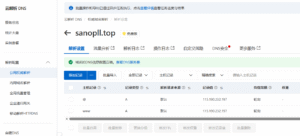
接下来配置Https访问
在做配置前建议先备份,不同的人可能会遇到不同的问题,以便于恢复
修改Nginx配置支持HTTPS
把容器wordpress的/var/wordpress-docker/nginx/wordpress.conf
内容更新
接下来展示我的配置,你可以把内容给ai进行个人化修改
server {
    listen 80;
    server_name sanopll.top www.sanopll.top;
    return 301 https://$server_name$request_uri;
}

# HTTPS 主配置
server {
    listen 443 ssl http2;
    server_name sanopll.top www.sanopll.top;

    # SSL 证书路径(将在下一步生成)
    ssl_certificate /etc/letsencrypt/live/sanopll.top/fullchain.pem;
    ssl_certificate_key /etc/letsencrypt/live/sanopll.top/privkey.pem;

    # SSL 安全配置
    ssl_protocols TLSv1.2 TLSv1.3;
    ssl_ciphers ECDHE-RSA-AES256-GCM-SHA512:DHE-RSA-AES256-GCM-SHA512:ECDHE-RSA-AES256-GCM-SHA384:DHE-RSA-AES256-GCM-SHA384;
    ssl_prefer_server_ciphers off;
    ssl_session_cache shared:SSL:10m;
    ssl_session_timeout 10m;

    # 安全头
    add_header Strict-Transport-Security "max-age=31536000; includeSubDomains" always;
    add_header X-Frame-Options "SAMEORIGIN" always;
    add_header X-Content-Type-Options "nosniff" always;
    add_header X-XSS-Protection "1; mode=block" always;

    # WordPress 代理
    location / {
        proxy_pass http://wordpress:80;
        proxy_set_header Host $host;
        proxy_set_header X-Real-IP $remote_addr;
        proxy_set_header X-Forwarded-For $proxy_add_x_forwarded_for;
        proxy_set_header X-Forwarded-Proto $scheme;
        proxy_set_header X-Forwarded-Host $host;
    }

    # 静态文件缓存
    location ~* \.(js|css|png|jpg|jpeg|gif|ico|svg|woff|woff2)$ {
        expires 1y;
        add_header Cache-Control "public, immutable";
        proxy_pass http://wordpress:80;
    }

    # 安全设置
    location ~ /\.ht {
        deny all;
    }
    location ~ /wp-config.php {
        deny all;
    }
}
安装 Certbot 获取免费 SSL 证书
这里是我的网站的演示
域名根据自己的情况修改域名和邮箱
# 安装 Certbot
sudo apt update
sudo apt install certbot python3-certbot-nginx

# 临时停止 Nginx 容器(Certbot 需要 80 端口)
docker stop wordpress_nginx

# 获取 SSL 证书(使用 standalone 模式)
sudo certbot certonly --standalone -d sanopll.top -d www.sanopll.top --non-interactive --agree-tos --email your-email@example.com

# 重新启动 Nginx
docker start wordpress_nginx
更新 Nginx 容器支持 HTTPS
# 停止并删除旧容器
docker stop wordpress_nginx
docker rm wordpress_nginx

# 创建证书目录映射
sudo mkdir -p /etc/letsencrypt
sudo chmod -R 755 /etc/letsencrypt

# 重新启动 Nginx 容器,映射 SSL 证书和开启 443 端口
docker run -d --name wordpress_nginx \
  --network wordpress-net \
  -p 80:80 \
  -p 443:443 \
  -v /var/wordpress-docker/nginx/wordpress.conf:/etc/nginx/conf.d/default.conf \
  -v /etc/letsencrypt:/etc/letsencrypt:ro \
  nginx:alpine
更新wordpress配置
按照格式更新,这是我的配置的演示(已做安全处理)
docker exec wordpress sh -c 'cat > /var/www/html/wp-config.php << "CONFIG"
<?php
/**
 * The base configuration for WordPress
 *
 * The wp-config.php creation script uses this file during the installation.
 * You don'\''t have to use the website, you can copy this file to "wp-config.php"
 * and fill in the values.
 *
 * This file contains the following configurations:
 *
 * * Database settings
 * * Secret keys
 * * Database table prefix
 * * ABSPATH
 *
 * @link https://developer.wordpress.org/advanced-administration/wordpress/wp-config/
 *
 * @package WordPress
 */

// ** Database settings - 示例配置,实际使用需替换 ** //
/** The name of the database for WordPress */
define( "DB_NAME", "wp_demo_db" );

/** Database username */
define( "DB_USER", "wp_demo_user" );

/** Database password - 演示用密码,实际需使用强密码 */
define( "DB_PASSWORD", "demo123456" );

/** Database hostname */
define( "DB_HOST", "db:3306" );

/** Database charset to use in creating database tables. */
define( "DB_CHARSET", "utf8" );

/** The database collate type. Don'\''t change this if in doubt. */
define( "DB_COLLATE", "" );

/**#@+
 * Authentication unique keys and salts.
 *
 * 实际使用时需通过以下链接生成唯一值:
 * {@link https://api.wordpress.org/secret-key/1.1/salt/ WordPress.org secret-key service}
 *
 * 更换这些值会使所有现有cookie失效,强制用户重新登录。
 *
 * @since 2.6.0
 */
define("AUTH_KEY",         "replace_with_your_unique_key_here");
define("SECURE_AUTH_KEY",  "replace_with_your_unique_key_here");
define("LOGGED_IN_KEY",    "replace_with_your_unique_key_here");
define("NONCE_KEY",        "replace_with_your_unique_key_here");
define("AUTH_SALT",        "replace_with_your_unique_key_here");
define("SECURE_AUTH_SALT", "replace_with_your_unique_key_here");
define("LOGGED_IN_SALT",   "replace_with_your_unique_key_here");
define("NONCE_SALT",       "replace_with_your_unique_key_here");
/**#@-*/

// ** HTTPS强制配置 - 示例域名,实际需替换为自己的域名 ** //
define("WP_HOME", "https://example.com");
define("WP_SITEURL", "https://example.com");
define("FORCE_SSL_ADMIN", true);
define("FORCE_SSL_LOGIN", true);

// ** 处理反向代理的HTTPS检测 ** //
if (isset($_SERVER["HTTP_X_FORWARDED_PROTO"]) && $_SERVER["HTTP_X_FORWARDED_PROTO"] == "https") {
    $_SERVER["HTTPS"] = "on";
}
if (isset($_SERVER["HTTPS"]) && $_SERVER["HTTPS"] == "on") {
    $_SERVER["REQUEST_SCHEME"] = "https";
    $_SERVER["SERVER_PORT"] = 443;
}

// ** Cookie域设置 - 示例域名,实际需替换 ** //
define("COOKIE_DOMAIN", "example.com");
define("COOKIEPATH", "/");
define("SITECOOKIEPATH", "/");

/**
 * WordPress database table prefix.
 *
 * 建议使用非默认前缀(如wp_demo_)提高安全性
 */
$table_prefix = "wp_demo_";

/**
 * WordPress debugging mode.
 * 开发环境可设为true,生产环境需设为false
 */
define( "WP_DEBUG", false );

/* Add any custom values between this line and the "stop editing" line. */

/* That'\''s all, stop editing! Happy publishing. */

/** Absolute path to the WordPress directory. */
if ( ! defined( "ABSPATH" ) ) {
    define( "ABSPATH", __DIR__ . "/" );
}

/** Sets up WordPress vars and included files. */
require_once ABSPATH . "wp-settings.php";
CONFIG'
配置完这些后重启docker容器,确保配置生效
使用域名进入网站,如sanopll.top
若自动加上https,则配置成功
若出现错误,如
- THE END -

最后修改:2025年11月19日
非特殊说明,本博所有文章均为博主原创。



共有 0 条评论